


How to Use the WordPress Multisite Shared Media Library
The plugin usage is pretty straightforward; all you need to do is activate it for your WordPress multisite network and optionally decide which gallery type better fits your needs, and which site’s media library you’re going to use as the network library.
Activate for the WordPress Multisite Network
In order to activate the plugin, you just need to go to Network Admin > Plugins and then click the “Network Activate” link.

Configure the Global Media Library Type in Plugin Settings
Once you’ve installed and activated the plugin for the whole multisite network, in your network admin dashboard, you can go to Settings > Network Media and configure it.

As you can see in the screenshot above, here you can choose the type of shared media library that is going to be used across your multisite network.
Below, you can find more details about each of the options:
| Library type | How it works |
|---|---|
| “Display in a separate tab” | This library type allows you to use media files from both local and global media libraries on your sub-sites. The “Shared media” tab will be added (which, by the way, can be renamed with the filter hook rudr_sml_shared_media_tab_title).When you upload a new attachment, it will be added to the site where it was uploaded. If it is uploaded on the main site, it will be available in the network library. |
| “Replace local media library” | Seamlessly replaces local libraries on sub-sites with a shared global library. When you upload a new media file on any sub-site, it will be uploaded to the network library. |
You can switch the media library type at any time.
Change the Site Used as the Network Media Library
By default, the plugin is going to use the main site of your network as a network library. If you want to change that, I recommend doing it right after the plugin installation.
It can either be done in the plugin settings or with the rudr_sml_network_library_id filter hook, which can be found in the plugin documentation.
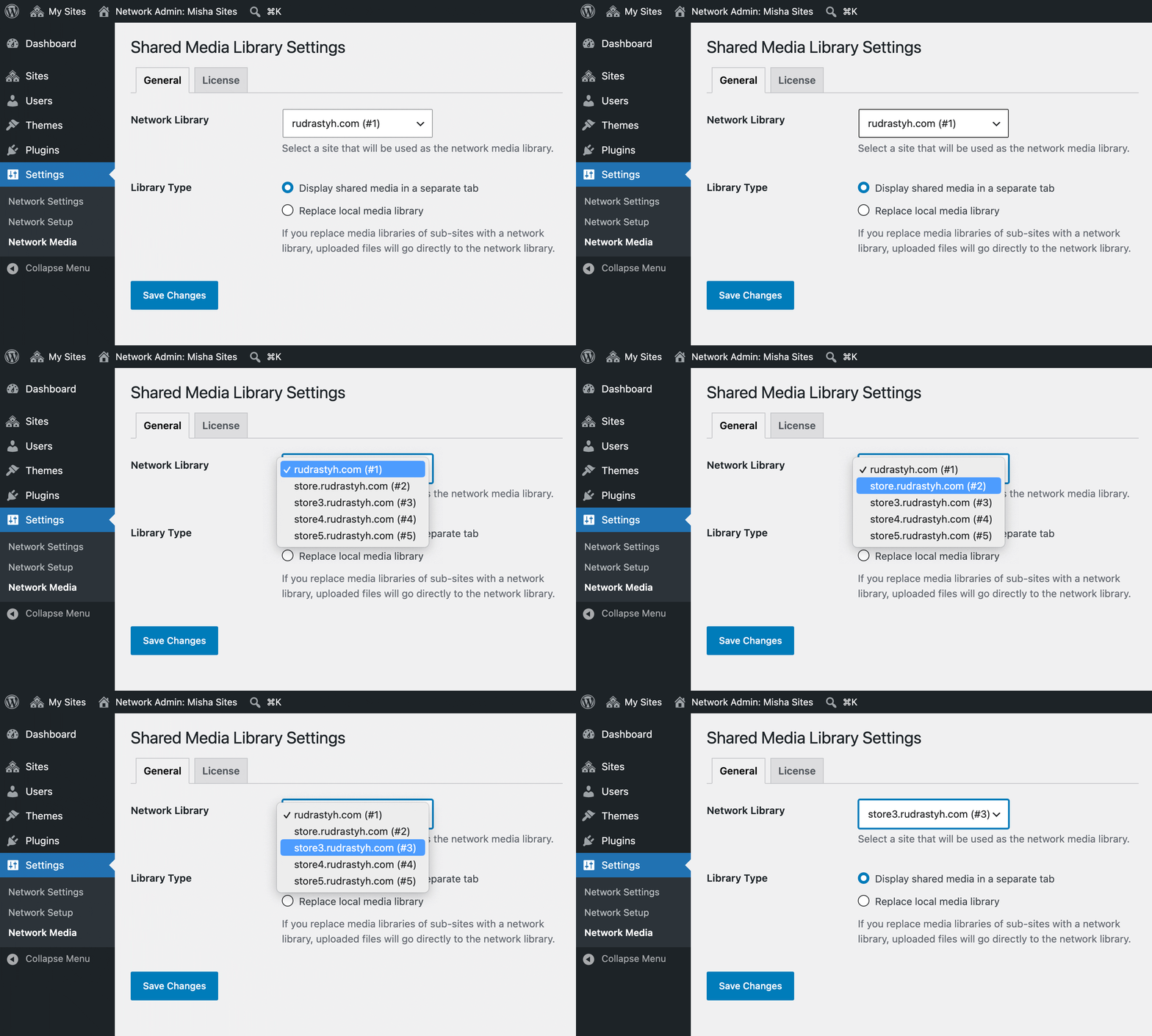
I don’t recommend changing the network media library main site very often; however, what’s important here is that this action doesn’t affect global media files, which are already in use in existing posts (including custom fields) across your WordPress Multisite’s sites.