Configuring Shared Inventory between WooCommerce and Google Sheets
In this step-by-step guide, you will learn how to configure shared inventory for your products between your WooCommerce store and a Google spreadsheet.
Though this tutorial is more about setting things up with the help of the plugin, specifically with the Stock Sync with Sheets for WooCommerce plugin (it is the easiest solution), in every step you will also find the instructions on how to do things programmatically, with custom code.
Step 1. Connect a WooCommerce Store with Google Sheets
Before doing any WooCommerce stock synchronization with a Google spreadsheet, you will need to obtain API credentials in your Google account and then use these credentials to connect your WooCommerce store with Google Sheets.
It is not that difficult itself; however, it is quite easy to get lost in all the settings pages in your Google account, so let’s figure it out first.
1.1 Enable Google Sheets API
First things first, you will need to sign in to your Google account (the one you are going to use to host a Google spreadsheet with the product stock information).
Once you have done that, you will need to navigate to console.cloud.google.com and create a new project there. To do that, just click the “Select a project” button:

After that, a modal window will appear where you can select one of the already created projects; however, we need to click the “New project” link.
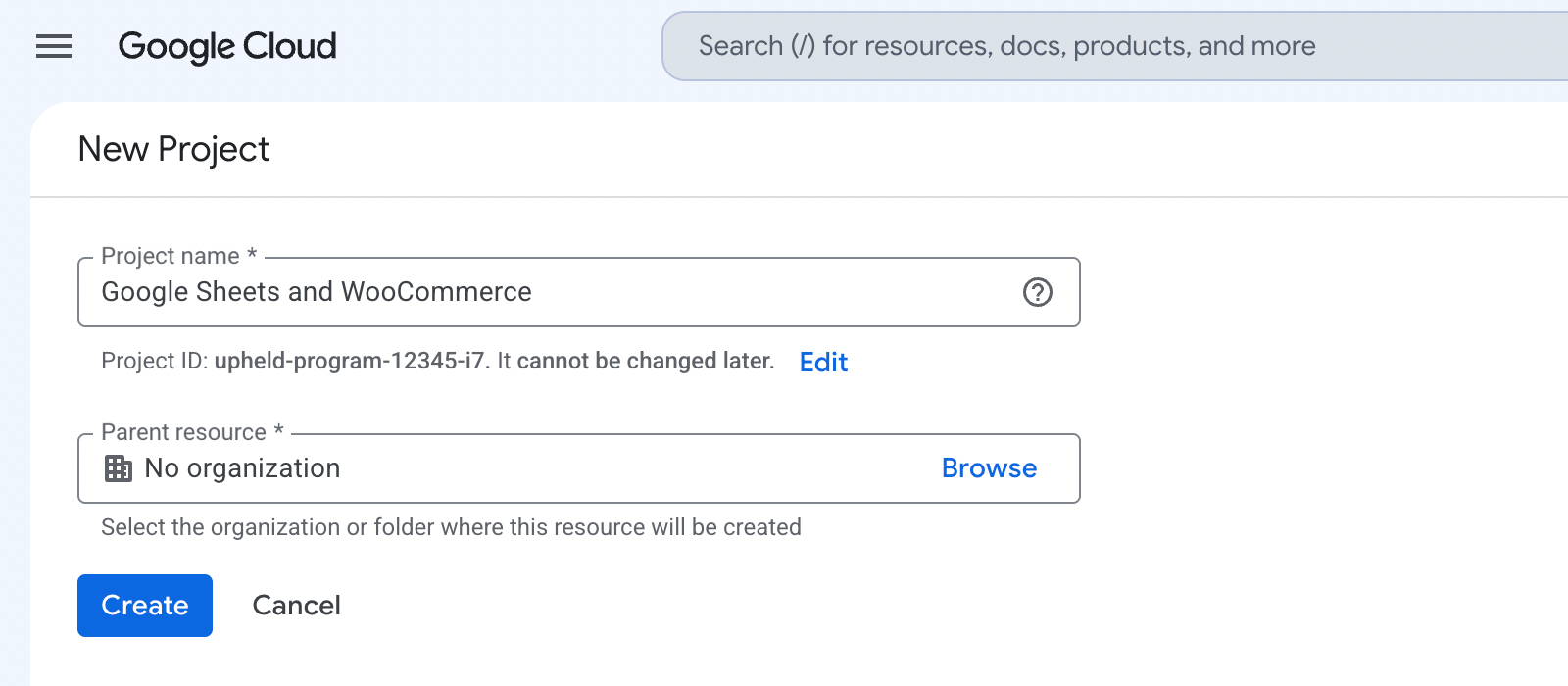
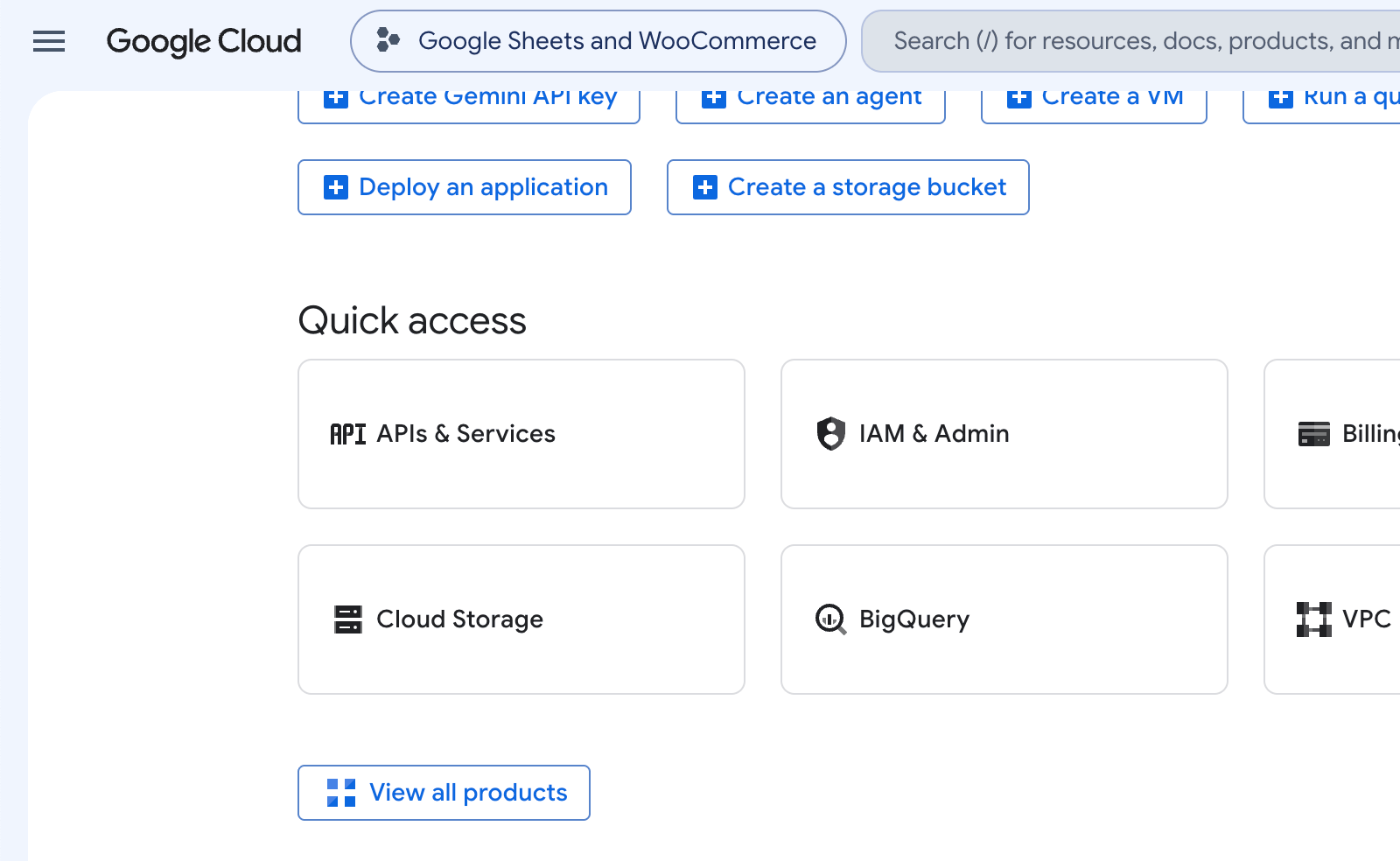
Once the project is created, we need to enable the Google Sheets API in “APIs & Services”.
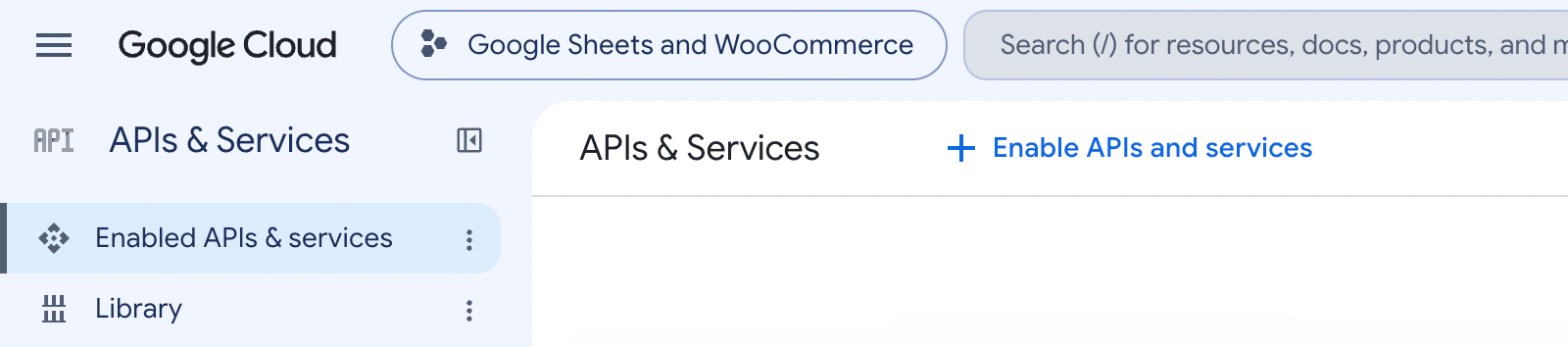
Then click the “+ Enable APIs and Services” button:
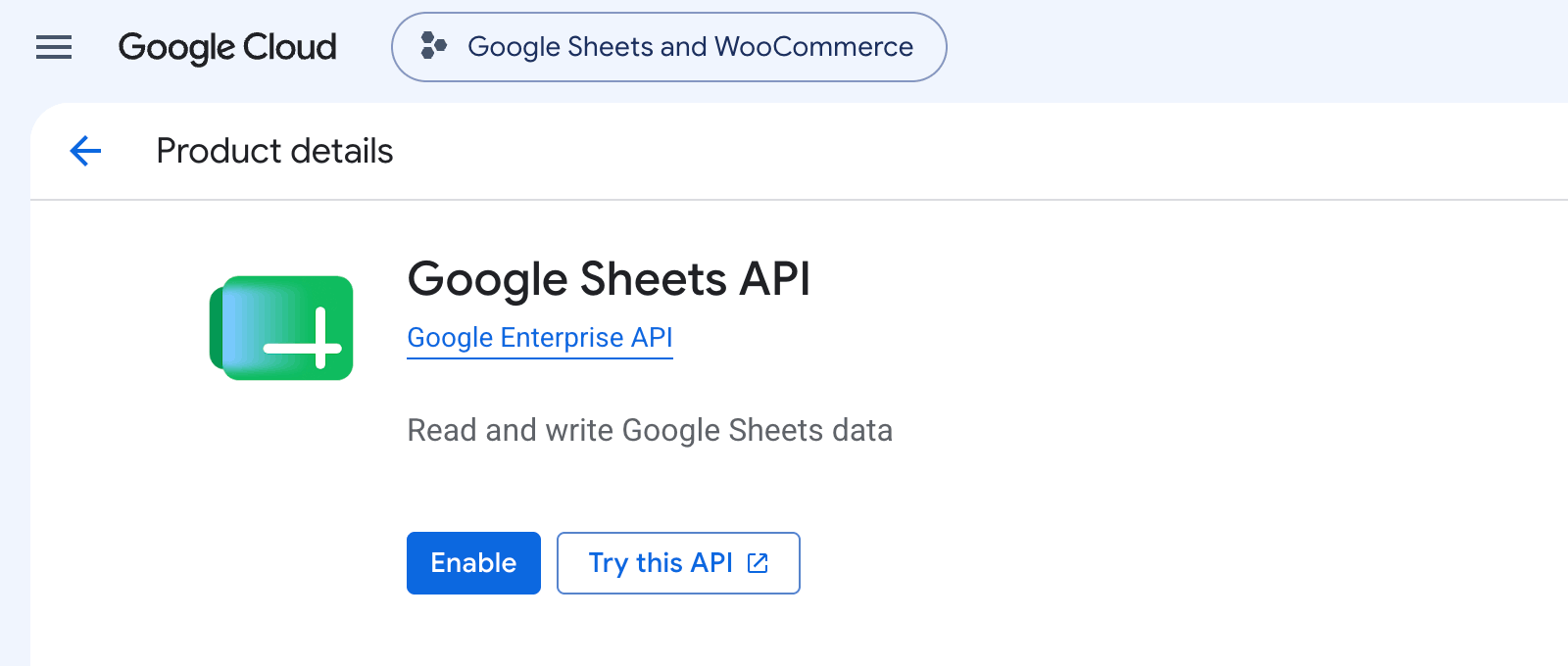
Then, in the search field, you will need to search for “Google Sheets API” specifically, then click on the specific search result and enable it:
Ok, the easiest step is now finished.
1.2 Get Client ID and Client Secret
Now, it is time to create a Client ID and Client Secret. In some cases, though, you may need to create an API key only and not bother with the OAuth stuff.
Let’s go to the “Credentials” page and click the “+ Create credentials” button:
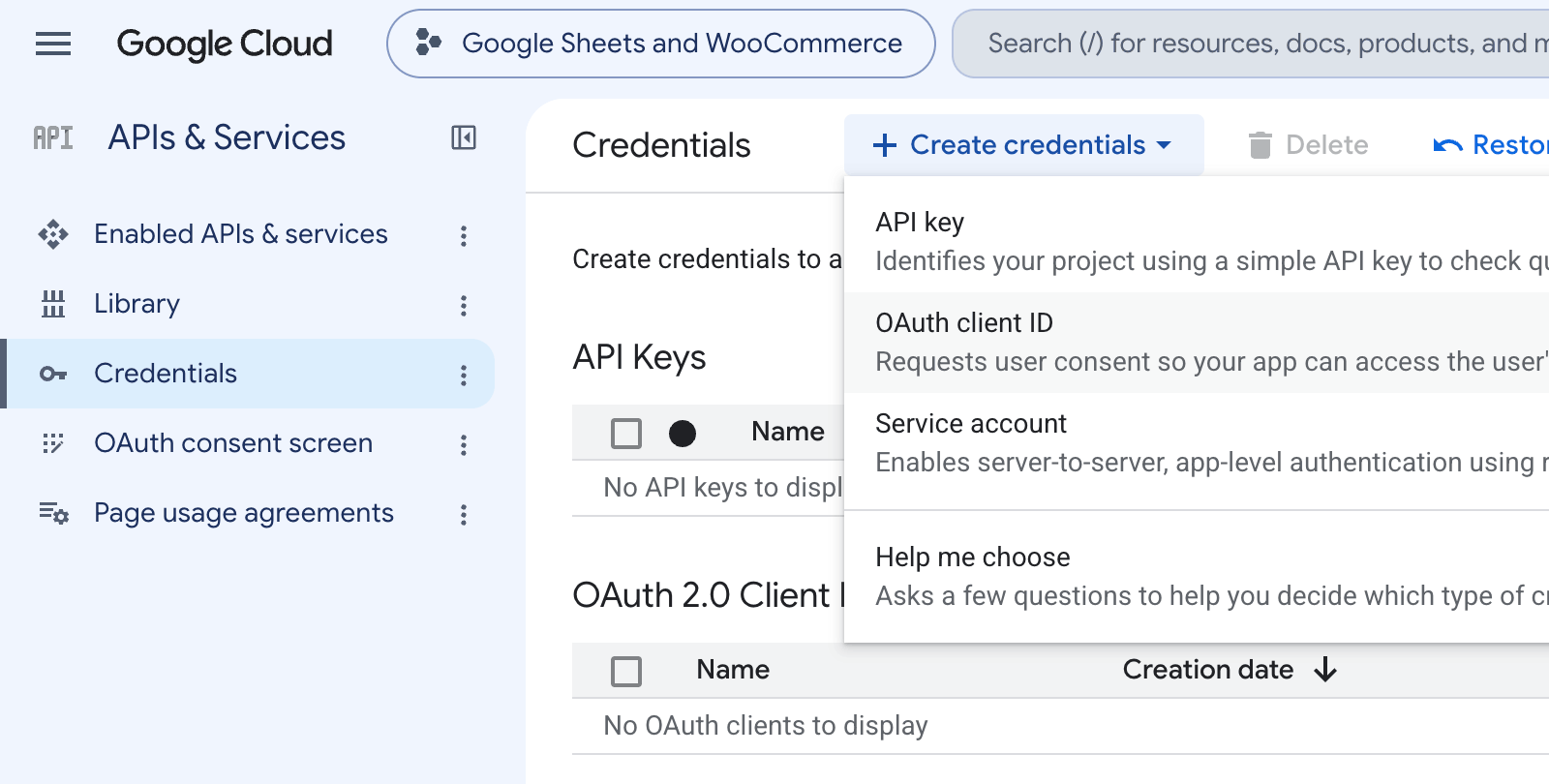
So, what is the difference between an API key and an OAuth client ID?
- API key – basically, it only allows you to read spreadsheets that are not private (available by a direct link). It means that you can configure the shared inventory only when syncing in one direction – from a spreadsheet to a WooCommerce store.
- OAuth client ID – allows you to do pretty much everything, not only to get the stock information from a Google spreadsheet, but also to sync WooCommerce stock to that Google spreadsheet.
In all the examples below, we are only going to use the second method.
However, before creating the OAuth Client ID and Client Secret, you will most probably be asked to “Configure consent screen”. So, you will need to click an appropriate button, or navigate to “OAuth consent screen” from the sidebar menu on the left (it is just below the “Credentials” menu link).
A page like the one below will appear, and you will need to follow the steps:
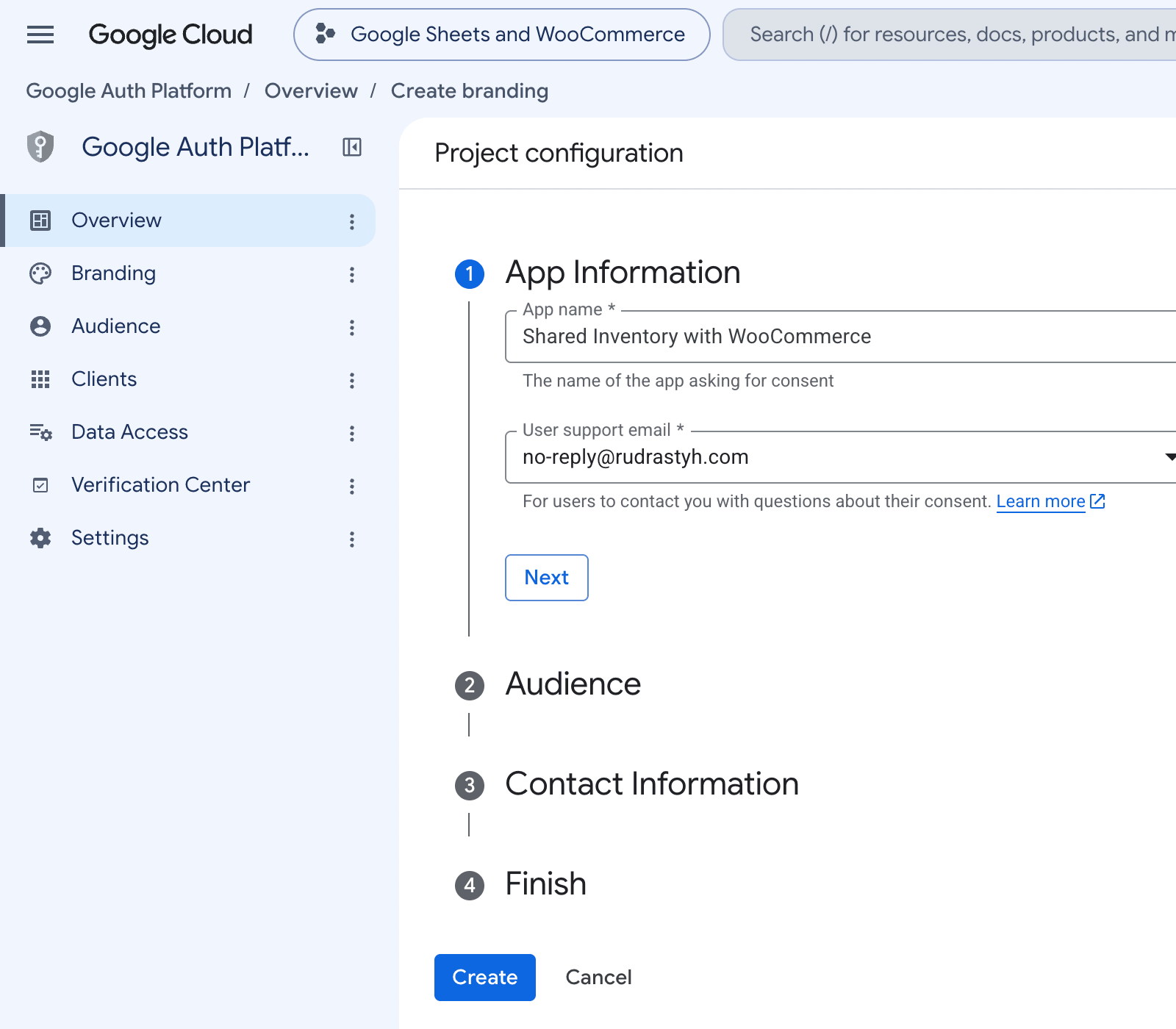
Once finished, from your brand new app dashboard, click the “Create OAuth client” button, or navigate from the menu to “Clients” and then click the “+ Create client” button:
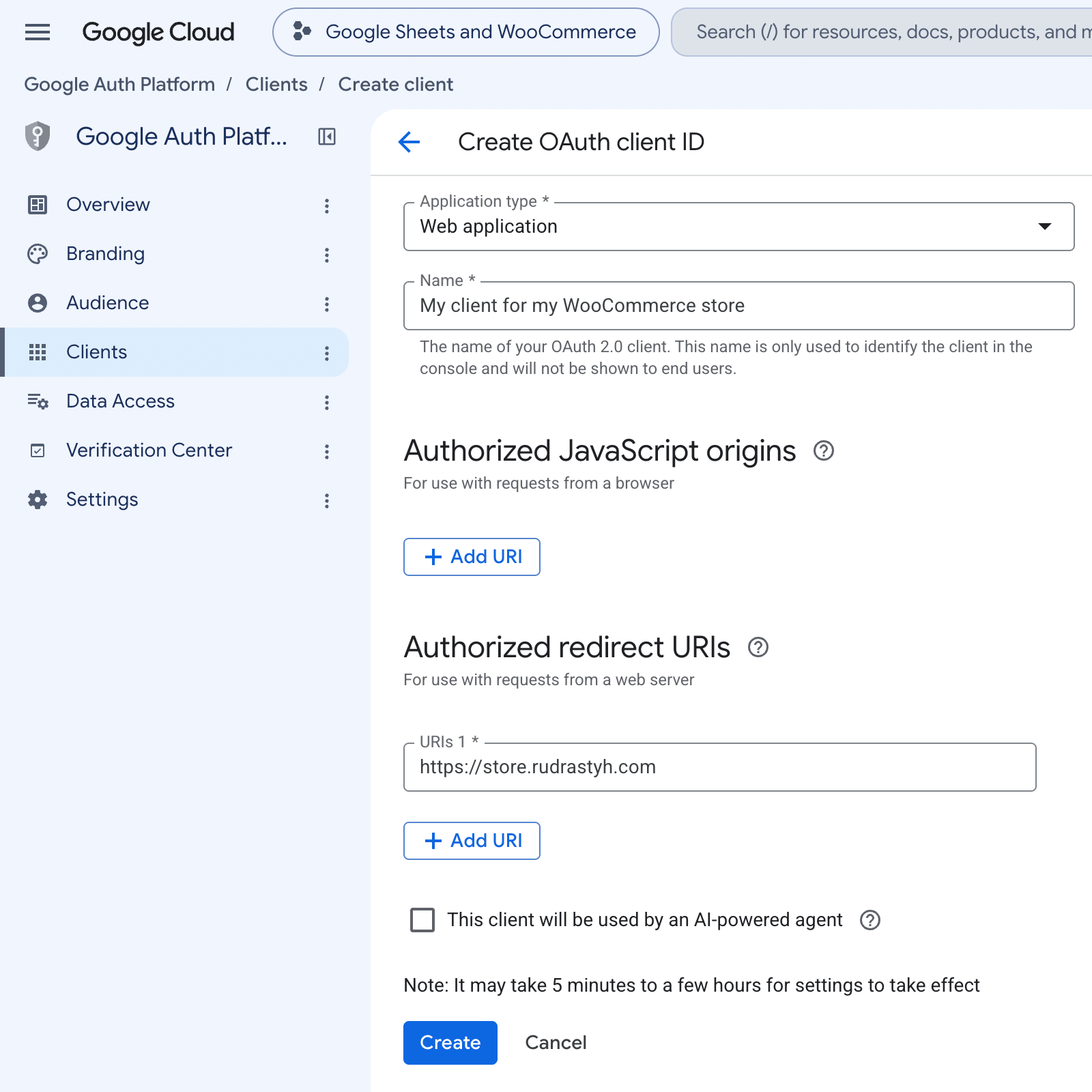
The section you should pay attention to is “Authorized redirect URIs”.
Depending on your web application, you may need to provide some specific URIs of your store, maybe even with some parameters. But for the Stock Sync with Sheets for WooCommerce plugin, specifying your WooCommerce store’s homepage is more than enough.
Once you click the “Create” button, both Client ID and Client Secret will appear in a modal window. Please don’t forget to save your credentials before closing it.
1.3 Add a test user
If you’re thinking that we’ve finished – bad news.
The caveat here is that your application is ready; however, not everyone can use it freely. There are two ways to fix that:
- Finish your app branding and submit it to the Verification Center.
- Or manually add a specific test user (who has the Gmail account, obviously) who will be configuring the Stock Sync with Sheets for WooCommerce plugin.
Since the configuration of the plugin needs to be done only once, we can easily use the app with the test user approach.
Let’s go to the “Audience” page and add a user there:
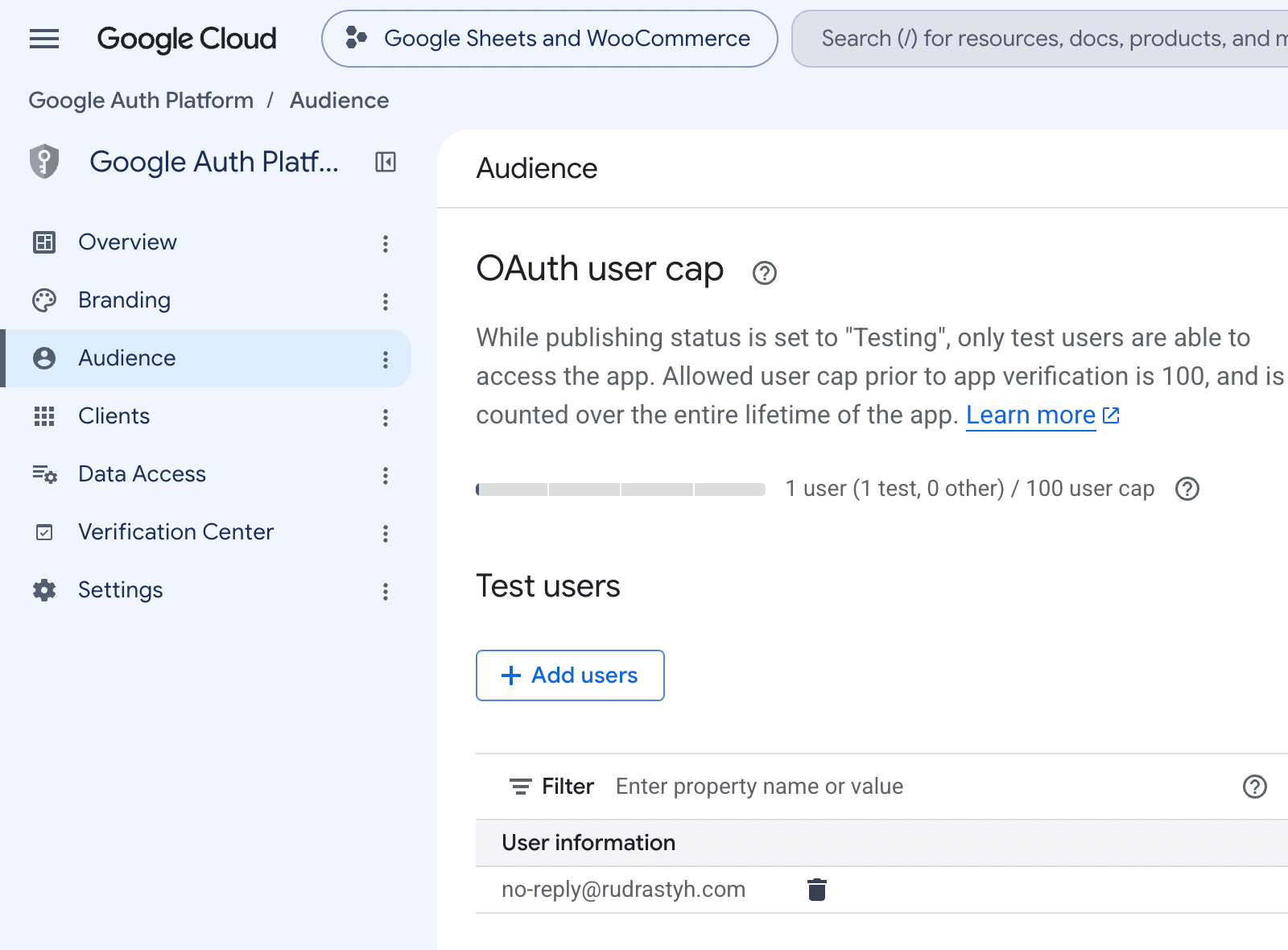
Now, we have finally finished the application configuration, and all that’s left is to go to the plugin settings in your WooCommerce store and do a couple of simple steps there.
1.4 Connecting to Google Sheets from the plugin settings
Go to the “WooCommerce > Settings > Stock Sync with Sheets” page and provide the credentials we created before in this guide. After that, you will need to click the button below: “Connect to Google Sheets API”.

Once you do that, you will be redirected to the Google application page where you need to select your Google account, then click “Continue” multiple times, and that’s that.

Now, the Stock Sync with Sheets for WooCommerce plugin and your Google Sheets account are connected, and you can continue setting up shared product inventory between your WooCommerce store and a Google spreadsheet.
Programmatic approach
In case you decide not to go with the simple plugin approach and do all the work by yourself, below are some tips you could use.
But first things first, you will need to install the Google APIs PHP Library.
After that, the OAuth redirection step will look like this in your code:
$client = new Google\Client();

$client->setClientId( $client_id );
$client->setClientSecret( $client_secret );
$client->setRedirectUri( site_url() );
$client->addScope( Google\Service\Sheets::SPREADSHEETS );
$client->setPrompt( 'consent' );
$client->setAccessType( 'offline' );

wp_redirect( $client->createAuthUrl() );
exit;
After the user is redirected back to your store, we need to create an access token from the authentication code and store it somewhere in your WooCommerce store options.
$client = new Google\Client();
$client->setClientId( $client_id );
$client->setClientSecret( $client_secret );
$client->setRedirectUri( site_url() );
$client->addScope( Google\Service\Sheets::SPREADSHEETS );

$token = $client->fetchAccessTokenWithAuthCode( $_GET[ 'code' ] );

update_option( 'google_sheets_api_token', $token );
Step 2. Configure Shared Inventory with Google Sheets
Previously, in this tutorial, I promised you that there will be two approaches:
- With the help of the Stock Sync with Sheets for WooCommerce plugin,
- With custom code, programmatically.
Of course, it is totally up to you which way to go; however, using a plugin is much more convenient. If you run into any issues or want to request custom features, it’s super easy to do by creating a support ticket.
Method 1. Using Stock Sync with Sheets for WooCommerce
Basically, all you need to do is decide in which direction you want to sync WooCommerce product inventory:
- from WooCommerce to Google Sheets,
- or from Google Sheets to WooCommerce.
Also, provide a URL of your Google spreadsheet that contains all stock quantities.
All of that can be configured in the plugin settings, in “WooCommerce > Settings”, then the “Products” tab, and then the “Stock Sync with Sheets” section:
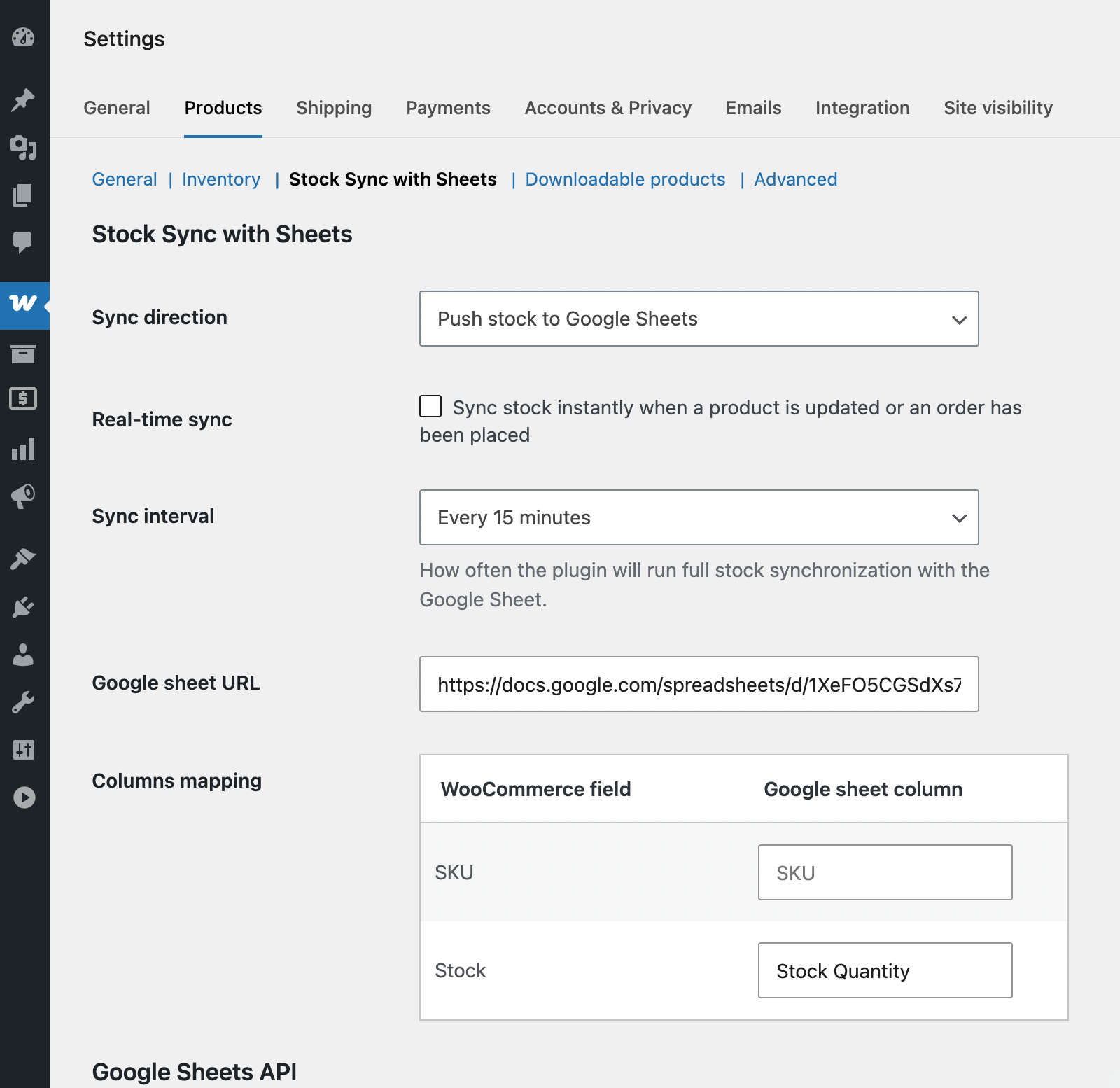
Also, if your spreadsheet column names are different from “SKU” and “Stock”, please specify them in the “Columns mapping” setting.
Method 2. Setting up shared inventory with Google Sheets programmatically
In the code snippets below, I assume you are already connected to Google Sheets in your code. In other words, I will use the $client variable like an authenticated Google\Client() object.
To parse stock quantities from your Google spreadsheet, you’ll need to use this code snippet:
$service = new Google\Service\Sheets( $client );

$spreadsheet = $service->spreadsheets->get( $spreadsheet_id );

$sheets = $spreadsheet->getSheets();

// let's just use the first tab for simplicity
$sheet_name = $sheets[0]->getProperties()->getTitle();

$rows = $service->spreadsheets_values->get( $spreadsheet_id, $sheet_name )->getValues();

// print_r( $rows );
What about the $spreadsheet_id variable? It is actually a part of your Google spreadsheet URI, here .../spreadsheets/d/SPREADSHEET ID HERE/edit.
You can also update the inventory data in your Google spreadsheet straight from your WooCommerce store using the following code:
// preparing the body for the request
$body = new Google\Service\Sheets\BatchUpdateValuesRequest(
	array(
		'valueInputOption' => 'USER_ENTERED',
		'data' => $stock_updates,
	)
);

// sending the request
$service->spreadsheets_values->batchUpdate( $spreadsheet_id, $body );
Misha Rudrastyh
Hey guys and welcome to my website. For more than 15 years I've been doing my best to share with you some superb WordPress guides and tips for free.
Need some developer help? Contact me